
Enhancing Productivity with two extensions for Privacy-First AI Integration

Written by Henry Navarro
Introduction 🎯
Welcome to an exploration of how AI can help to improve your workflow in VS Code! In this article, we’ll dive into two powerful extensions: Continue and Cline that enable seamless integration with OpenWebUI (a privacy-first interface for AI model deployment). These tools empower developers to write, debug, and optimize code with AI-driven suggestions, all while keeping your data completely private on your local machine with self-hosted models.
While many AI coding tools rely on external APIs or cloud services (often at the cost of privacy), Continue and Cline stand out for their zero-trust architecture, customizable model deployment, and deep integration with OpenWebUI. This makes them ideal for developers who prioritize security, performance, and full control over their AI workflows.
In this article, you’ll learn:
- What makes Continue and Cline unique (vs. other AI coding tools).
- Installation and setup in VS Code with OpenWebUI, using PrivateGPT (my interface for OpenWebUI, available for free trial).
- Basic usage for code generation, debugging, and optimization.
- API capabilities for advanced users (e.g., custom model configuration, context-aware workflows).
What is Vibe Coding? 🎧💻
Open WebUI for Vibe coding is a chill yet powerful approach to development — you code alongside your own private AI models. It’s coding with flow, where creativity meets smart assistance without losing data privacy.
How Do Continue & Cline Enable Vibe Coding?
Both extensions turn VS Code into an AI-powered environment. With Continue, you get a chat-based interface for code generation and contextual help — perfect for brainstorming and rapid development. Cline steps things up with agent-like features, allowing for even more automation and complex task execution inside your editor.
And the best part? All these capabilities are powered by self-hosted models via OpenWebUI (or your company’s/private deployment with PrivateGPT). That means your innovative code, business secrets, and creative flows never leave the confines of your workspace.
Setting Up OpenWebUI 🛡️🖥️
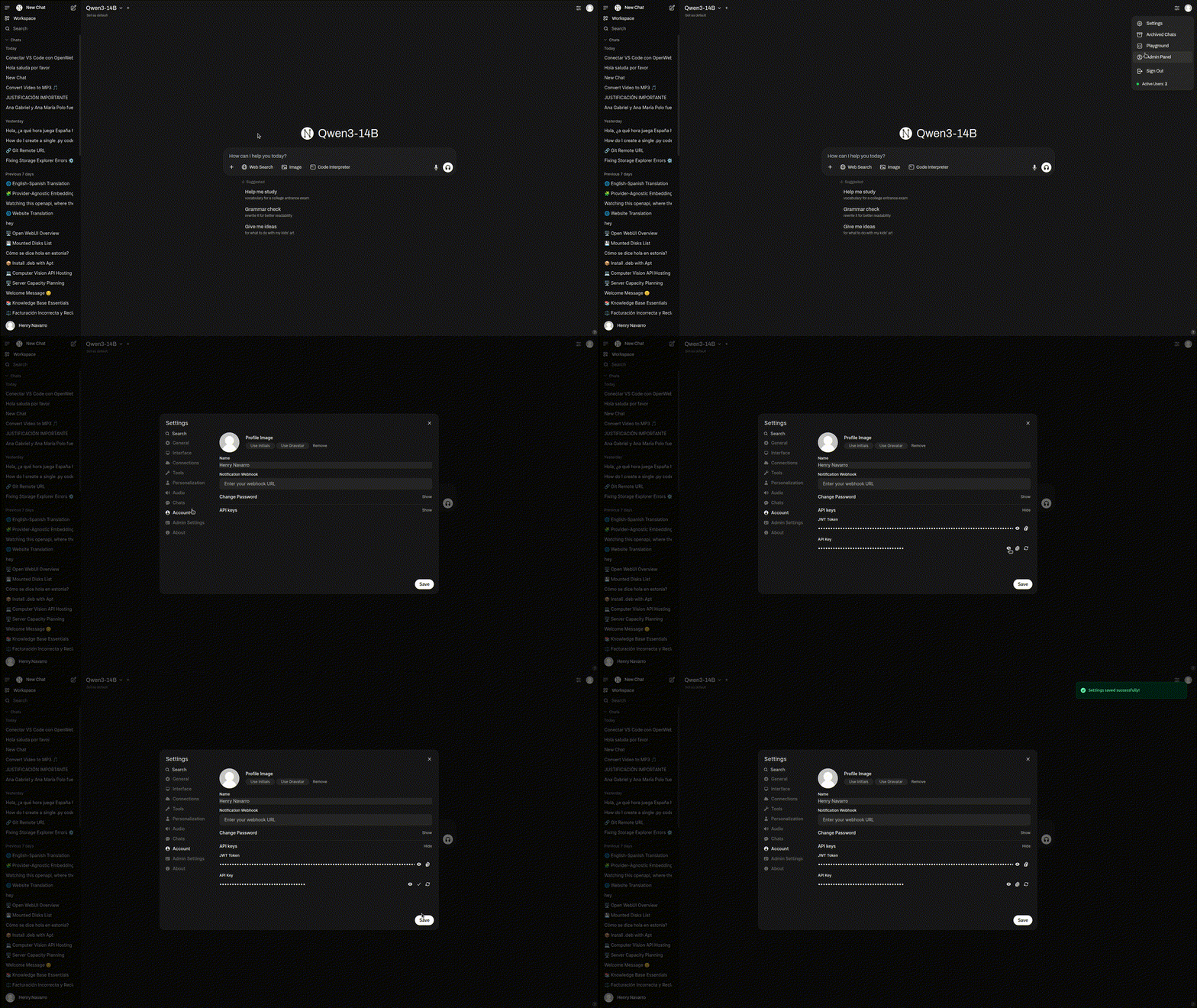
If you want to set up your own OpenWebUI interface, you have the instructions in its repo, but I have a free (with limited tokens) and ready-to-use interface here where after registration, you can get your own API as follows:
- Login in to the interface
- Go to your picture
- Account
- Copy your API Key
Installing Continue and Cline in VS Code 🧩⚡️
With your PrivateGPT (or OpenWebUI) environment ready, it’s time to plug its AI power straight into your everyday coding routine. That’s where the VS Code extensions Continue and Cline come in. With just a few steps, you’ll be collaborating with your own AI assistant — locally and securely.
Install the Extensions
Continue
- Open the Extensions panel in VS Code (
Ctrl+Shift+X). - Search for
Continue. - Click Install.
Cline
- Again, in the Extensions panel, search for
Cline. - Click Install.
Configure the Extensions to Use PrivateGPT/OpenWebUI
Continue
- Open the Continue sidebar in VS Code.
- Go to the settings (usually via the gear/cog icon).
- Set up a new Assistant — for example, named “Local Assistant.”
- Open the configuration (YAML or JSON) editor for this Assistant.
- Enter your PrivateGPT/OpenWebUI API endpoint and API key.
Example configuration:
name: Local Assistant
version: 1.0.0
schema: v1
models:
  - name: Qwen3-14B
    provider: openai
    model: Qwen3-14B
    apiBase: yourOpenWebUIurl/api
    apiKey: sk-apikey-OpenWebUI
    template: none
    defaultCompletionOptions:
      contextLength: 32768
      maxTokens: 8192
    roles:
      - chat
      - edit
      - apply
      - autocomplete

  - name: Qwen3-235B-A22B
    provider: openai
    model: Qwen3-235B-A22B
    apiBase: yourOpenWebUIurl/api
    apiKey: sk-apikey-OpenWebUI
    template: none
    defaultCompletionOptions:
      contextLength: 32768
      maxTokens: 8192
    roles:
      - chat
      - edit
      - apply
      - autocomplete

context:
  - provider: code
  - provider: docs
  - provider: diff
  - provider: terminal
  - provider: problems
  - provider: folder
  - provider: codebase
EDIT: In windows you might first need to install the win-ca extension
Cline
- Open the Cline sidebar or open its settings directly.
- Look for the “OpenAI-Compatible API” section.
- Enter your API base URL (e.g., https://chat.privategpt.es/api) and your API key.
- Choose your preferred model (such as
Qwen,GPT-4.1, or another local deployment). - Save and restart the extension if needed.

Using Continue: Code Generation and Debugging 🤖📝
With Continue now connected to your PrivateGPT/OpenWebUI backend, you can experience a level of interactive code assistance that feels both intuitive and secure. Let’s walk through what Continue can do for you, using hands-on examples inspired by your video.
The Chat-Driven Coding Experience
Once installed, Continue adds a sidebar in VS Code that functions like a chat window. Here, you communicate naturally — just type your coding questions, requests, or even plain-language prompts and let the AI model respond instantly.
Example 1: Generating a Python Script
Want a quick example of how Continue boosts productivity? Try asking:
“Write Python code to calculate the factorial of a number.”
Continue will generate a clean script for you, which you can directly insert into your current file or a new file with a single click.

Example 2: Interacting with Your Own Code
Suppose you’re working on a file called my_script.py, and you want AI help with it:
- Type
@file my_script.pyin the Continue chat. This loads your file’s content as the conversation context. - Now ask questions like:
- “Find any bugs in this script.”
- “Translate this code to English comments.”
- “Suggest test cases for this function.”
The AI responds with tailored advice or code — without your file ever leaving your computer.
Example 3: Iterative Debugging and Refinement
Continue lets you have a real “conversation” with your code. If the first version isn’t perfect, you can follow up:
“Now rewrite this function to handle negative inputs.”
The model remembers previous context, enabling deeper, iterative collaboration.
Keeping It Private — and Fast!
Because Continue uses the PrivateGPT/OpenWebUI API, all the heavy computation is local. You can see your hardware at work: for example, GPU usage spikes when generating or analyzing code, and drops back to idle once the task is done. This not only speeds up workflow but ensures no third party ever sees your code or queries.
Using Cline: The AI Agent for Complex Tasks 🦾🎮
If Continue is your conversational partner for coding, Cline is your in-editor AI agent — ready to take on more complex, hands-on roles. Think beyond code suggestions: Cline can interpret your project goals, execute step-by-step plans, and even interact with your workspace in ways that feel almost like a real collaborator.
What Makes Cline Different?
While Continue focuses on code generation and iterative chat, Cline leverages agent mode — enabling it to carry out tasks in structured, automated sequences. It’s optimized for multi-step workflows and can manage everything from creating files to installing dependencies, all directed through simple, natural prompts.
Real Example: Building Flappy Bird in Python
Start a new Cline chat and type:
“Create a Flappy Bird game in Python using the Pygame library.”
Cline will analyze your prompt and devise a game plan, breaking down the development into actionable steps (such as installing packages, structuring files, and writing game logic).
The following code was 100% AI generated, that’s vibe coding 😀😀😀
import pygame
import sys
import random

# Configuration
WIDTH = 400
HEIGHT = 600
FPS = 60
GRAVITY = 0.5
JUMP = -8
PIPE_VELOCITY = 3
PIPE_DISTANCE = 200
PIPE_WIDTH = 60
HOLE_HEIGHT = 150

# Colors
WHITE = (255, 255, 255)
BLACK = (0, 0, 0)
BLUE = (0, 150, 255)
GREEN = (0, 200, 0)
RED = (255, 0, 0)
YELLOW = (255, 255, 0)

class Bird:
    def __init__(self):
        self.x = 60
        self.y = HEIGHT // 2
        self.radius = 20
        self.velocity = 0
        self.alive = True

    def jump(self):
        self.velocity = JUMP

    def move(self):
        self.velocity += GRAVITY
        self.y += self.velocity

    def draw(self, screen):
        pygame.draw.circle(screen, YELLOW, (self.x, int(self.y)), self.radius)

    def get_rect(self):
        return pygame.Rect(self.x - self.radius, int(self.y) - self.radius, self.radius * 2, self.radius * 2)

class Pipe:
    def __init__(self, x):
        self.x = x
        self.hole_height = HOLE_HEIGHT
        self.top = random.randint(50, HEIGHT - self.hole_height - 50)
        self.passed = False

    def move(self):
        self.x -= PIPE_VELOCITY

    def draw(self, screen):
        pygame.draw.rect(screen, GREEN, (self.x, 0, PIPE_WIDTH, self.top))
        pygame.draw.rect(screen, GREEN, (self.x, self.top + self.hole_height, PIPE_WIDTH, HEIGHT - (self.top + self.hole_height)))

    def get_rects(self):
        upper_rect = pygame.Rect(self.x, 0, PIPE_WIDTH, self.top)
        lower_rect = pygame.Rect(self.x, self.top + self.hole_height, PIPE_WIDTH, HEIGHT - (self.top + self.hole_height))
        return upper_rect, lower_rect
```python
def show_text(screen, text, size, color, y):
    font = pygame.font.SysFont("Arial", size, bold=True)
    render = font.render(text, True, color)
    rect = render.get_rect(center=(WIDTH // 2, y))
    screen.blit(render, rect)

def main():
    pygame.init()
    screen = pygame.display.set_mode((WIDTH, HEIGHT))
    pygame.display.set_caption("Flappy Bird (Python + pygame)")
    clock = pygame.time.Clock()
    font = pygame.font.SysFont("Arial", 32, bold=True)

    # Start screen
    playing = False
    while not playing:
        screen.fill(BLUE)
        show_text(screen, "FLAPPY BIRD", 48, WHITE, HEIGHT // 3)
        show_text(screen, "Press SPACE to start", 28, WHITE, HEIGHT // 2)
        pygame.display.flip()
        for event in pygame.event.get():
            if event.type == pygame.QUIT:
                pygame.quit()
                sys.exit()
            if event.type == pygame.KEYDOWN and event.key == pygame.K_SPACE:
                playing = True

    # Initialize game
    bird = Bird()
    pipes = [Pipe(WIDTH + 100)]
    score = 0
    game_over = False

    while True:
        clock.tick(FPS)
        for event in pygame.event.get():
            if event.type == pygame.QUIT:
                pygame.quit()
                sys.exit()
            if event.type == pygame.KEYDOWN:
                if event.key == pygame.K_SPACE and not game_over:
                    bird.jump()
                if event.key == pygame.K_r and game_over:
                    main()
                    return

        if not game_over:
            bird.move()
            # Generate new pipes
            if pipes[-1].x < WIDTH - PIPE_DISTANCE:
                pipes.append(Pipe(WIDTH))

            # Move and remove pipes off-screen
            for pipe in pipes:
                pipe.move()
            if pipes[0].x < -PIPE_WIDTH:
                pipes.pop(0)

            # Collisions and score
            bird_rect = bird.get_rect()
            for pipe in pipes:
                upper_rect, lower_rect = pipe.get_rects()
                if bird_rect.colliderect(upper_rect) or bird_rect.colliderect(lower_rect):
                    game_over = True
                if not pipe.passed and pipe.x + PIPE_WIDTH < bird.x:
                    score += 1
                    pipe.passed = True

            # Floor and ceiling
            if bird.y - bird.radius < 0 or bird.y + bird.radius > HEIGHT:
                game_over = True

        # Draw
        screen.fill(BLUE)
        for pipe in pipes:
            pipe.draw(screen)
        bird.draw(screen)
        show_text(screen, f"Score: {score}", 32, WHITE, 40)

        if game_over:
            show_text(screen, "GAME OVER", 48, RED, HEIGHT // 2 - 40)
            show_text(screen, "Press R to restart", 28, WHITE, HEIGHT // 2 + 20)

        pygame.display.flip()

if __name__ == "__main__":
    try:
        import pygame
    except ImportError:
        print("You must install pygame: pip install pygame")
        sys.exit()
    main()
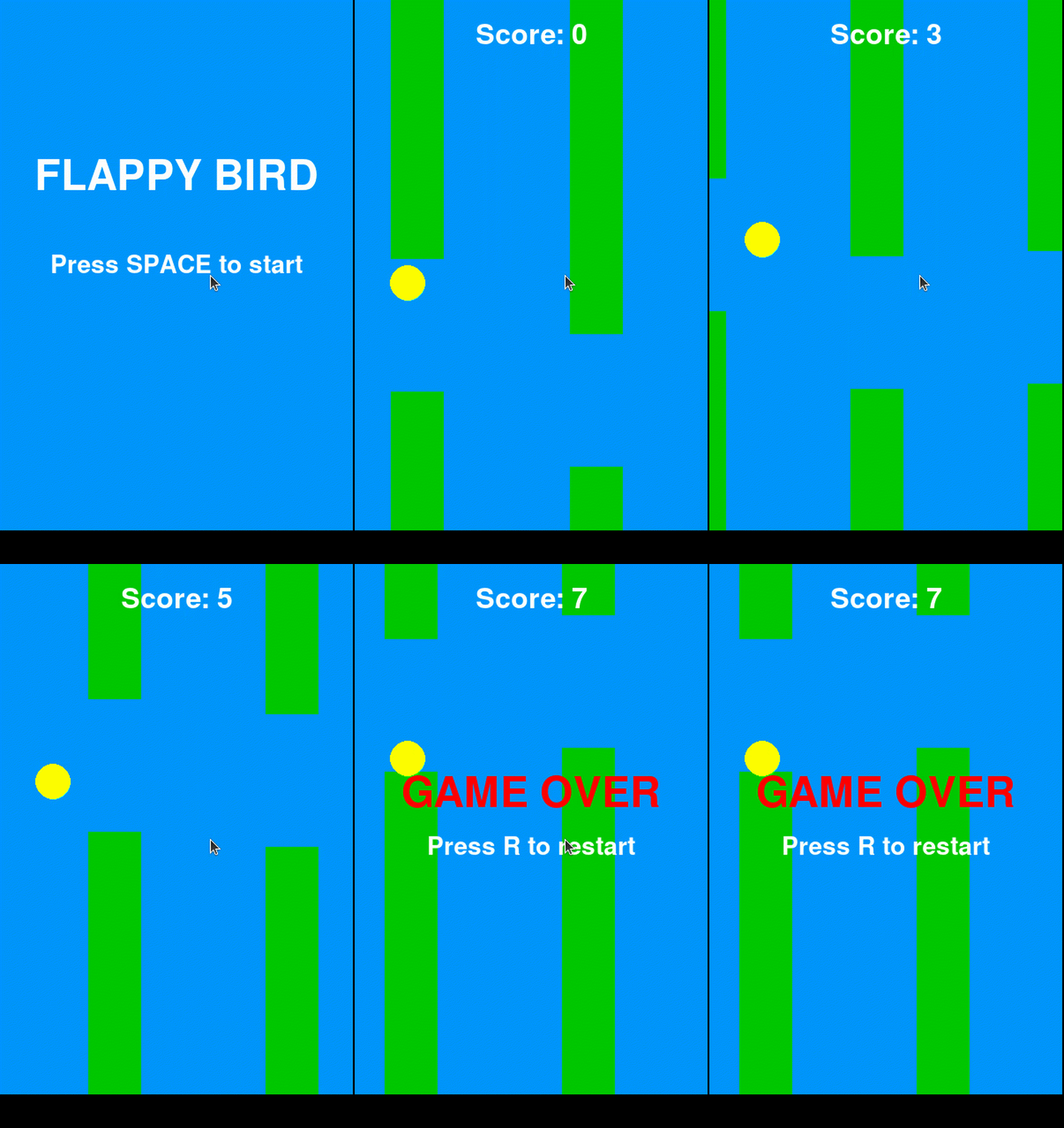
This will open an interface like this:
Conclusion and Next Steps 🎯🚀
The fusion of Continue, Cline, and PrivateGPT (enhanced OpenWebUI interface) represents a leap forward for developers seeking both the power of AI and uncompromising privacy. With this stack, you’re able to harness advanced code generation, debugging, and automation — all running locally and always under your control.
Key Takeaways:
- Productivity, Unleashed: Instantly brainstorm, prototype, and document without ever sending a line of code to the cloud.
- Private by Design: Thanks to PrivateGPT/OpenWebUI, all your sensitive logic and intellectual property remain safely on your hardware.
- Versatile AI Toolset: From chat-driven coding and code analysis (Continue) to agent-mode automation and complex project scaffolding (Cline), you have a solution for nearly every development challenge.
Ready to Start Vibe Coding?
- Try PrivateGPT:
Take advantage of the free demo and experience what a private, local LLM interface can offer — [insert your demo link here]. - Install Continue and Cline:
Search for these extensions in VS Code and connect them to your PrivateGPT/OpenWebUI API. - Explore, Experiment, and Build:
Challenge the AI to analyze your code, build games, automate tasks, and make coding as fun as it is powerful.
Thank you so much to Álvaro Alonso for inspiring me to write this article.
Happy Coding! 💻🚀
If you liked this post, you can support me here ☕😃.
Keywords: #VibeCoding #VSCode #Continue #Cline #PrivateGPT #OpenWebUI #AICoding #LocalAI #CodingProductivity #AIAssistant #DeveloperTools #Programming #Python #Pygame #CodersLife #DataPrivacy #SelfHosted #AIWorkflow #TechInnovation #CodeAutomation
Originally published on Medium on June 8, 2025.