
Exploring vLLM: The Performance-Focused Framework

Written by Henry Navarro
Introduction 🎯
Welcome back to our deep dive into LLM inference frameworks! In Part I, we explored Ollama and its user-friendly approach to running large language models. Now, it’s time to shift our focus to vLLM, a framework that takes a different path by prioritizing performance and scalability.
vLLM has gained significant attention in the AI community for its innovative approach to LLM inference. While Ollama excels in simplicity, vLLM stands out for its efficient memory management, continuous batching capabilities, and tensor parallelism. This makes it particularly attractive for production environments and high-throughput scenarios.
In this second part of our three-part series, we’ll explore:
- What makes vLLM unique
- Its installation and setup process
- Basic usage and configuration
- API capabilities and integration options
- Performance optimization features

Let’s dive into what makes this framework a compelling choice for LLM inference! 🚀
What is vLLM? 🚀
vLLM is a high-performance framework designed for LLM inference, focusing on efficiency and scalability. Built on PyTorch, it leverages CUDA for GPU acceleration and implements advanced optimization techniques like continuous batching and efficient memory management, making it particularly suitable for production environments.
Usage 🛠️
Using vLLM is not as easy as using Ollama, and I think the best way to use it is with Docker for a clean and isolated installation. Docker provides a consistent environment and makes deployment straightforward across different systems.
Prerequisites
- Docker installed on your system
- NVIDIA Container Toolkit (for GPU support)
- At least 16GB of RAM (recommended)
- NVIDIA GPU with sufficient VRAM for your chosen model
At the moment I am writing this article GGUF quantized models are not fully supported by vLLM but this could change in the future. This is what It can be seen in the vLLM documentation website:
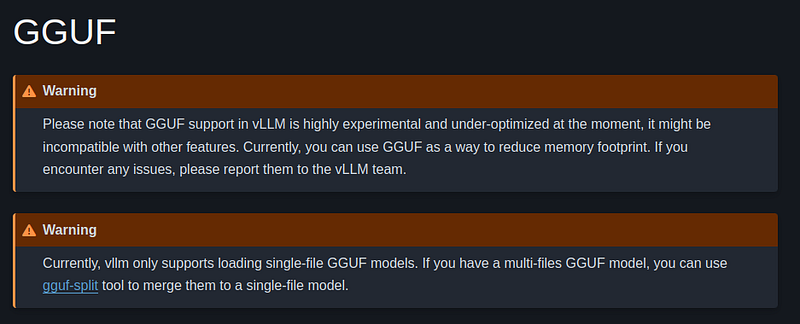
But what’s GGUF and why is so important for our research?
GGUF (GPT-Generated Unified Format) 🔍
GGUF, considered by many the successor to GGML, is a quantization method that enables hybrid CPU-GPU execution of large language models, optimizing both memory usage and inference speed. It’s particularly relevant to our research because it’s the only format that Ollama supports for model execution.
The format is particularly efficient on CPU architectures and Apple Silicon, supporting various quantization levels (from 4-bit to 8-bit) while maintaining model quality.
While vLLM currently offers limited GGUF support, focusing instead on native GPU optimization, understanding this format is crucial for our comparative analysis since it’s the foundation of Ollama’s operation. In Part III of this research, we’ll explore how these different approaches to model optimization affect performance metrics, providing a comprehensive view of each framework’s capabilities under various hardware configurations.
Deploying with Docker 🐳
With this clarified, let’s proceed to deploy Qwen2.5–14B as our referenced model for this research. For this, let’s start downloading the model in just a single file, due to as we showed, vLLM still doesn’t support a multi-file quantized model (see previous image), so we cannot use the official GGUF model provided by Qwen. This can take a bit of time depending on your internet speed connection:
# Create a folder models inside your working directory
mkdir models/
mkdir models/Qwen2.5-14B-Instruct/

# We download the model from lmstudio community. It is a 4-bit quantized model in just a single file
huggingface-cli download lmstudio-community/Qwen2.5-14B-Instruct-GGUF Qwen2.5-14B-Instruct-Q4_K_M.gguf --local-dir ./models/Qwen2.5-14B-Instruct/

# Download the generation config from official repository and modify it
huggingface-cli download Qwen/Qwen2.5-14B-Instruct generation_config.json --local-dir ./config
You will need to also set a generation_config.json file. This part is crucial, and the first time I tried to find how to modify the temperature, it was a headache. Actually I opened a ticket in the official repo and not even the official maintainers were able to provide a valid response, so I had to find out myself.
This is how a generation_config.json looks like and here I set temperature=0
{
  "bos_token_id": 151643,
  "pad_token_id": 151643,
  "do_sample": true,
  "eos_token_id": [
    151645,
    151643
  ],
  "repetition_penalty": 1.05,
  "temperature": 0.0,
  "top_p": 0.8,
  "top_k": 20,
  "transformers_version": "4.37.0"
}
So, you will need to create a folder with this JSON file inside, and ensure it is named exactly generation_config.json.
Run the docker container with many parameters:
# Run the container with GPU support
docker run -it \
    --runtime nvidia \
    --gpus all \
    --network="host" \
    --ipc=host \
    -v ./models:/vllm-workspace/models \
    -v ./config:/vllm-workspace/config \
    vllm/vllm-openai:latest \
    --model models/Qwen2.5-14B-Instruct/Qwen2.5-14B-Instruct-Q4_K_M.gguf \
    --tokenizer Qwen/Qwen2.5-14B-Instruct \
    --host "0.0.0.0" \
    --port 5000 \
    --gpu-memory-utilization 1.0 \
    --served-model-name "VLLMQwen2.5-14B" \
    --max-num-batched-tokens 8192 \
    --max-num-seqs 256 \
    --max-model-len 8192 \
    --generation-config config
Ok, many things have happened here 🤣, there are many parameters, what does each mean?
--runtime nvidia --gpus all: Enables NVIDIA GPU support for the container.--network="host": Uses host network mode for better performance.--ipc=host: Allows shared memory between host and container.-v ./models:/vllm-workspace/models: Mounts local model directory into container. This is the folder that contains our Qwen2.5–14B model.--model: Specifies the path to the GGUF model file.--tokenizer: Defines the HuggingFace tokenizer to use.--gpu-memory-utilization 1: Sets GPU memory usage to 100%.--served-model-name: Custom name for the model when serving via API. You can assign the name you want.--max-num-batched-tokens: Maximum number of tokens in a batch.--max-num-seqs: Maximum number of sequences to process simultaneously.--max-model-len: Maximum context length for the model.
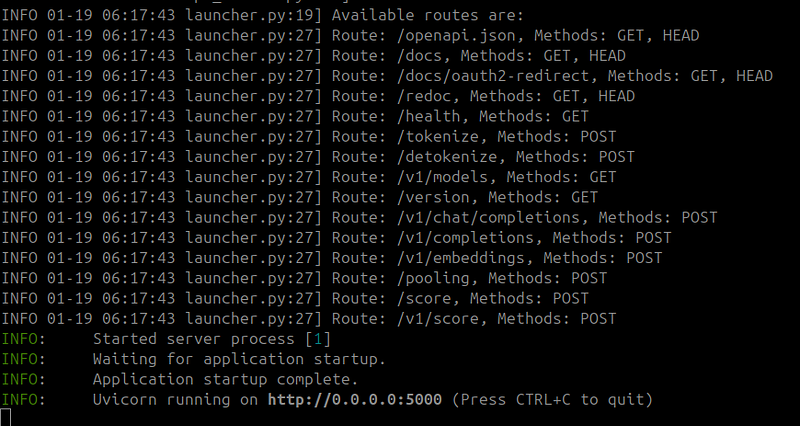
These parameters can be adjusted based on your hardware capabilities and performance requirements. After running this command, a huge amount of logs will be shown—don’t worry, everything is fine. You will be able to use it once you see something like this:
vLLM API 🔌
We have so far a 100% OpenAI-compatible API in our server (or local machine), so let’s try to call it and check inference performance with both, a single post and also with the openai sdk of Python.
1. REST API 📡
vLLM runs a local server on port 8000 by default, but I love port 5000 so I ran it there 🤣. You can interact with it using standard HTTP requests:
import requests

# Basic chat completion request. Note the endpoint is different to ollama
response = requests.post('http://192.168.100.60:5000/v1/chat/completions',
    json={
        'model': 'VLLMQwen2.5-14B',
        'messages': [
            {
                'role': 'system',
                'content': 'You are a helpful AI assistant.'
            },
            {
                'role': 'user',
                'content': 'What is artificial intelligence?'
            }
        ],
        'stream': False
    }
)
print(response.json()['choices'][0]['message']['content'])
2. OpenAI Compatibility Layer 🔄
For seamless integration with existing applications, Ollama provides OpenAI API compatibility. First, start the OpenAI-compatible server:
To use it with the OpenAI Python SDK:
from openai import OpenAI

client = OpenAI(
    base_url="http://
<your_vLLM_server_ip>:5000/v1",
    api_key="dummy" # vLLM accept requiring API key, one of its advantage agains ollama. In our case we set None, so you can set any string
)

# Chat completion
response = client.chat.completions.create(
    model="VLLMQwen2.5-14B",
    messages=[
        {"role": "system", "content": "You are a helpful assistant."},
        {"role": "user", "content": "What is artificial intelligence?"}
    ]
)
print(response.choices[0].message.content)
Initial performance tests show vLLM achieving 29 tokens/sec (with the expected slower first token generation), representing an 11% improvement over Ollama’s 26 tokens/sec as documented in Part I. We’ll dive deeper into performance comparisons in Part III of this series. 🚀

Key vLLM API Features 🎯
vLLM’s API is engineered for high-performance inference and production environments. While we’ll dive deep into its advantages and disadvantages in Part III of this tutorial, let’s explore its main features:
- Advanced GPU Optimization: Leverages CUDA and PyTorch for maximum GPU utilization, resulting in faster inference speeds (as we saw with the 29 tok/sec performance).
- Batching Capabilities: Implements continuous batching and efficient memory management, enabling better throughput for multiple concurrent requests.
- Security Features: Built-in API key support and proper request validation, unlike other frameworks that skip authentication entirely.
- Flexible Deployment: Comprehensive Docker support with fine-grained control over GPU memory utilization and model parameters.
Conclusion 🎬
In this second part of our series, we’ve explored vLLM’s architecture and capabilities. While it requires more setup than simpler frameworks, it demonstrates impressive performance and production-ready features.
Key takeaways from this exploration:
- Robust Docker-based deployment
- Superior inference speeds with advanced GPU optimization
- Production-grade API security features
- Comprehensive parameter control for performance tuning
In Part III, we’ll conduct detailed performance benchmarks and explore specific use cases where vLLM’s capabilities truly shine. We’ll help you understand when to choose vLLM for your specific inference needs.
Stay tuned for the final part of our LLM inference framework exploration! 🚀
Originally published on Medium on February 3, 2025.