
Agentic Mode in Open WebUI that turns your LLM into a self-directed worker

Written by Henry Navarro
Introduction 🎯
YouTube video here
Large language models are great at answering questions. But what happens when you want them to do things autonomously. Sime examples: scrape a website every single day, write and save a full Python backend, search your own documents, and even generate images?
Traditionally, you have to orchestrate everything yourself: pick the tools, chain the calls, and tell the model exactly what to do at every step.
Agentic mode changes that. It is a new way Open WebUI works that allows you to add new tools to the model, so the LLM itself decides which tools to call to complete your task. In this article, I will walk you through the complete process of setting up agentic mode in Open WebUI and testing it with a few questions:
Why I built this demo The point of this video and article is not to show off a fancy interface. The point is this: in every single demo, I did not tell the model what to do, step by step. I just stated the goal, and the LLM made all the decisions on its own, which tools to call, when to ask me a question, when to create an automation, when to spawn a subagent. That is what agentic mode is really about.
The Problem: LLMs That Only Chat 🤔
As you might have seen, most LLM interfaces are built around one interaction: you ask, it answers. That’s fine for questions, but real work is rarely a single question. Real work looks like this:
- “Scrape this website every day” → the model needs to create an automation, not just answer once
- “Write me a backend and save it so I can download it” → the model needs to write and run code and store files
- “Find this in my documents” → the model needs to search a knowledge base
- “Research this, but don’t do it yourself” → the model needs to delegate to a subagent If you want to do any of that with a plain chat interface, you end up doing the orchestration yourself: copying results, calling APIs, managing files. The model becomes a very smart autocomplete, not a worker. This is exactly what we are going to change in this article: how to turn your LLM into a self-directed agent that plans, asks, codes, and executes on its own.
What is Open WebUI? 🛠️
Open WebUI is a very popular interface for LLMs: it allows you to self-host your own ChatGPT-like application. In my demo I am running it on my own localhost, so everything stays on my machine. The best part is that in this interface you can connect your preferred provider: OpenAI, Anthropic, Ollama, or any other provider you want. The interface is provider-agnostic.
On top of the chat, Open WebUI gives you a workspace where you can create:
- Your own models
- Knowledge bases (upload your own documents)
- Prompts
-
Skills
What is Agentic Mode? 🤖
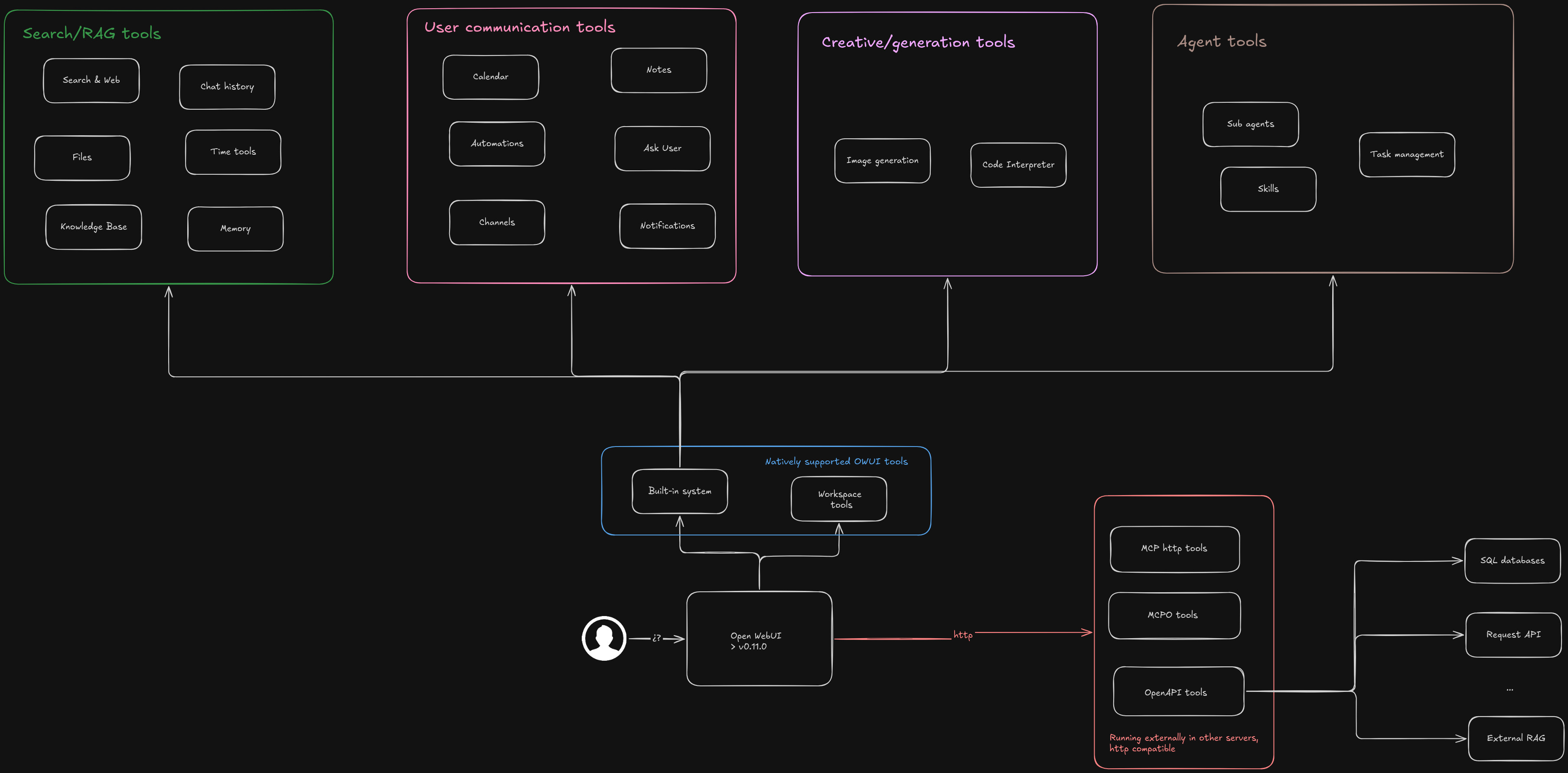
Agentic mode is a new way Open WebUI works that allows you to add new tools to the model. You can connect external tools (tools that allow you to chat with databases, request external APIs, connect your own RAG processes, and more), but in this article I want to focus on the natively supported, built-in system tools of Open WebUI. I have grouped the built-in system tools into four main groups:
1. Search Tools 🔍
These allow the LLM to search information, whether it is in your chat history, in the whole internet, in your knowledge bases, or even in the memory of what you have said previously.
2. User Communication Tools 💬
These refer to the communication between the LLM and you. The LLM can ask you questions (for instance, to clarify how you want to proceed), chat in channels, and create automations, like “do this every day for me.”
3. Creative Generation Tools 🎨
These refer to image generation and code generation. In this new version of Open WebUI you can create code and run code using the client as the resource: it uses Pyodide and everything runs inside your own browser.
4. Agent Tools 🧠
These are tools that are available to the LLM but are used exclusively by the agent: you can create subagents, list skills, or create a list of tasks before proceeding with anything. The LLM will do it for you.
Getting Started 🚀
Before we begin, you need an Open WebUI instance. The easiest way is with Docker:
docker run -d -p 3000:8080 --add-host=host.docker.internal:host-gateway -v open-webui:/app/backend/data --name open-webui ghcr.io/open-webui/open-webui:mainThen:
- Open
http://localhost:3000and create your account - Connect your preferred provider (OpenAI, Anthropic, Ollama,…)
- Enable the built-in tools for the model you want to use. That’s it. Now the model has hands. Let’s put them to work.
Demo 1: “Scrape This Website Every Day” 🕷️
The first question I prepared is:
“I need to scrape this website every day: uncensoredgpt.ai. How can you help me?”
I am not telling the model how to do it. It is supposed to reason about what the best option is for me. And this is where the user communication tools kick in: the model starts by asking me questions about how we want to proceed:
- When do you want it to run? → Every day in the morning
- What do you want to capture? → All the information
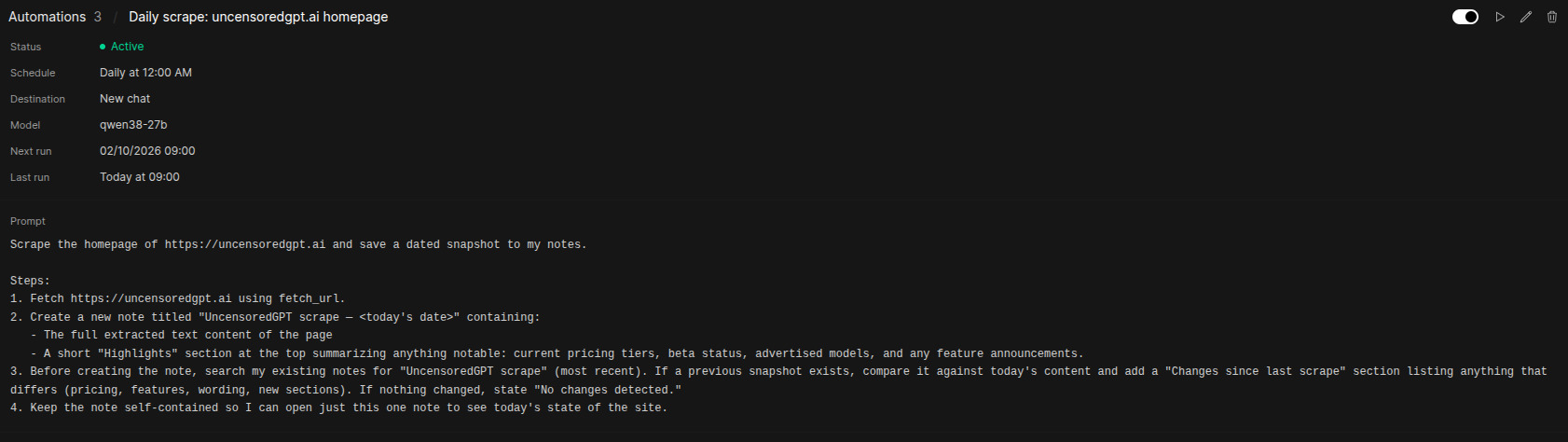
Once it has what it needs, the model creates an automation for me. If I go to the automations section (bottom left), I can see the automation it just created, run it right now if I want, and even export the chat to watch what the LLM is doing step by step.
While running, it calls several of the tools we mentioned before: fetch_url, search, view_note, and so on. Everything it produces is saved in my notes, so I can see exactly what happened seconds ago.
The result: a “scrape” agent that runs every day at 9 in the morning, created from a single natural-language question.
The key takeaway: I did not tell the LLM what to do. The agentic mode is able to call the tools necessary to complete the task on its own.
Demo 2: Subagents 🧬
The second question is designed to show the agent tools in action:
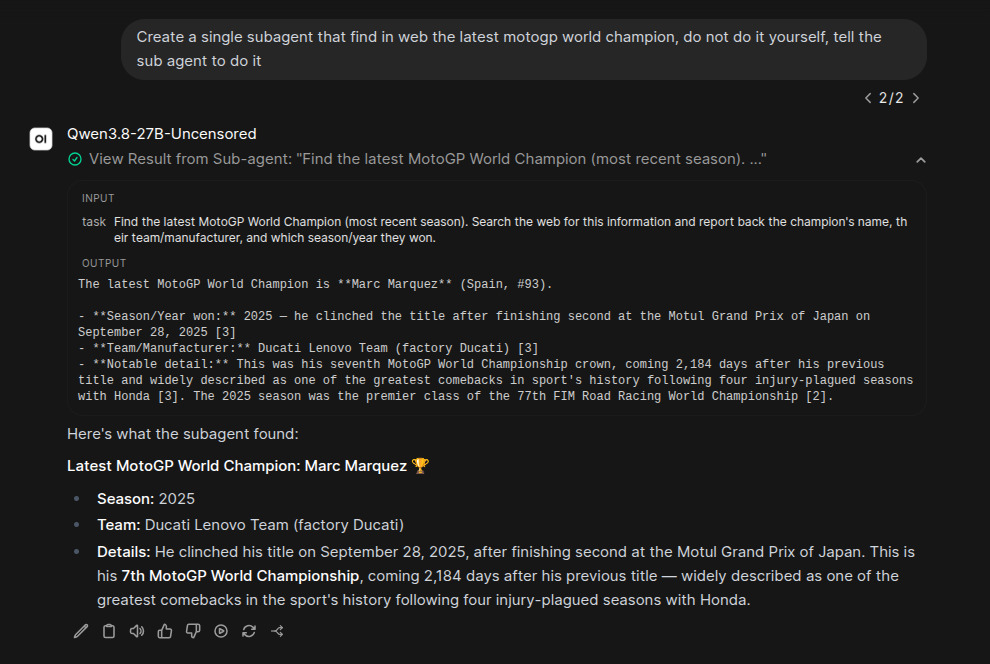
“Create a single subagent that finds the latest MotoGP world champion on the web. Do not do it yourself, tell the subagent to do it.”
Of course, for this particular question I don’t need a subagent, but I wanted to show you how they work. When I run this, another agent is spawned to run the task. The subagent uses the same tools that the main agent has to complete the task, and the information it retrieves is passed back to the main agent and shown to you. This is powerful for two reasons:
- Focus: the subagent works on a bounded task without polluting the main conversation
- Delegation: you can explicitly instruct the main agent to delegate
Demo 3: Code Generation 🐱
One of the coolest tasks is code generation. Here is the question I prepared:
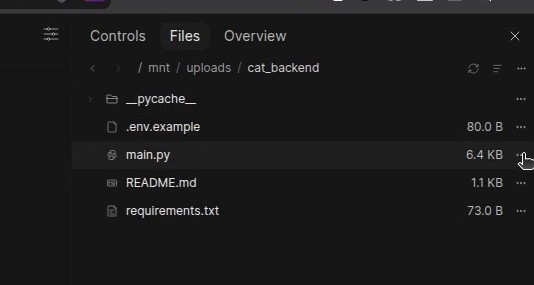
“I need you to create a software backend using Python. The code must be professional and I need you to save it so I can download it later. The backend must find a random image of a cat, using the API you see here: The Cat API documentation.”
Notice that I am not telling the model what to do. It is supposed to figure it out itself. Watch what happens:
- It fetches the URL I gave it
- It reads all the documentation it can find
- It starts creating the code (this can take a bit of time) When it is done, the model has created all the code. But where is it saved? If you go to the top right corner and open the files explorer, you will see a folder you can explore and download, the entire code, in a single folder. And here is the pretty cool part: you can run this code inside Open WebUI. Everything was created and executed in your browser using Pyodide, a framework that compiles Python to WebAssembly so your browser can understand it. Once you close your browser, everything disappears: no code is at risk of being stolen by somebody, because everything is running inside your own web browser.
Demo 4: Skills + Knowledge Bases + Image Generation 🦅
The next example is pretty cool because it involves many features of this new Open WebUI interface: skills, tools, and tool calling. But what exactly are skills? In Open WebUI you have a workspace where you can create your own models, knowledge bases, prompts, and finally skills. In a skill, what you provide is basically instructions for the model.
Here is the magic: these instructions do not live in the context of the model, so they don’t consume tokens. They are called specifically for certain tasks. In my setup I created:
- A knowledge base with some documents: I uploaded 5 documents as U.S. federal laws (just for testing)
- A skill that instructs the model to find some documents before proceeding with any other task
- An order to render an image in the response.
Now the question:
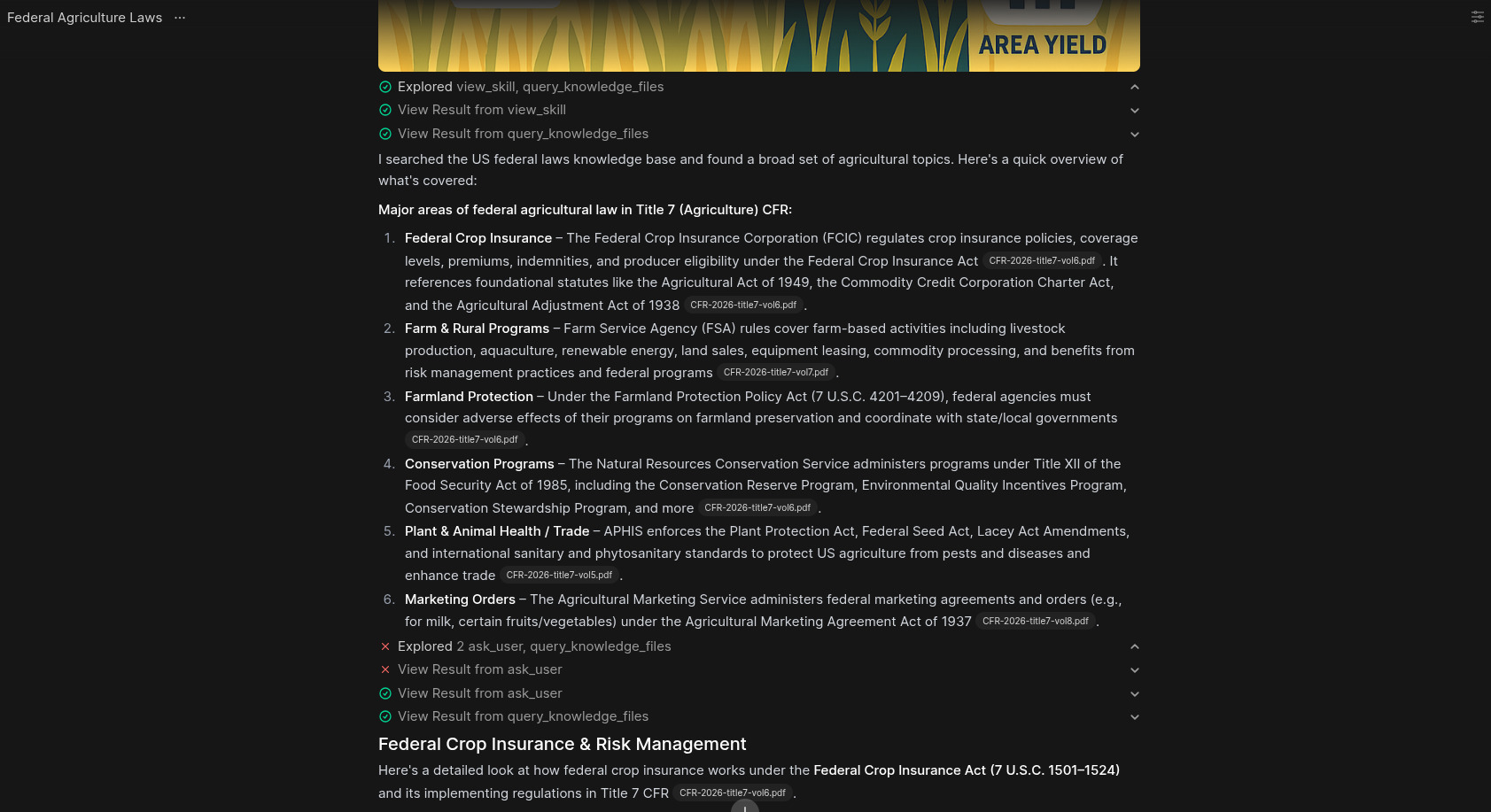
“Tell me anything about agriculture in federal laws.”
Watch the sequence:
- The model follows the skill’s instructions first: it searches the knowledge base and tries to find documents about it (it asked for ~20 documents)
- Because the skill doesn’t live in the context, it doesn’t consume any context for the model, you save a lot of tokens
- It asks me a question (remember the communication tools?) so it can provide a better response
- It prepares the query_knowledge_files call and builds the response from the documents
- Finally, it creates an image, with a bald eagle in the top right corner, using an external tool like
generate_imageSometimes LLMs can make mistakes: the image was created but it didn’t show me at first. So you just say: “Okay, show me the image.” And there it is.
All of this is running using the own intelligence provided by the AI. I have not told the model what to do, only the skills.
Try It Yourself 📝
If you liked what we are doing today, you can also give it a try on UncensoredGPT, it is a platform I created where you can chat without restrictions: explore DDoS attack scenarios, craft horror stories on any topic, or create images of anything you imagine. I’m so excited about it that it’s the reason I haven’t uploaded videos in the last month. Remember: on uncensoredgpt.ai.
If you want to see all of this in action, the complete video is on my channel. I upload videos talking about artificial intelligence, open source, and GPU computing, if these topics are interesting to you, I invite you to subscribe to the channel and turn on the bell so you don’t miss any update.
Final Thoughts 💭
With agentic mode in Open WebUI, you can turn your LLM into a self-directed worker: it searches, asks, automates, delegates to subagents, writes and runs code in your browser, and uses your knowledge bases and skills, all without you orchestrating a single step. I have tested it with four very different tasks: daily scraping, subagent research, professional code generation, and skills-driven document search with image generation. In every case, the model decided what to do on its own. AI should be a tool that works for us, not one that makes us work for it. Agentic mode is a big step in that direction.
Happy Agentic Building! 🚀💻
#OpenWebUI #AgenticAI #AIAgents #SubAgents #Skills #KnowledgeBases #LLM #MachineLearning #ArtificialIntelligence #Pyodide #WebAssembly #SelfHosted #OpenSourceAI #GPUComputing #AITools #Automation #LargeLanguageModels